Rename Branch
Renaming a branch in Git involves several steps:
- Rename the local branch by using either
git branch -m <newname>for the current branch, orgit branch -m <oldname> <newname>for any non-HEAD branch:
git branch -m <newname>
git branch -m <oldname> <newname>- Push the rename and removal using the following command. Note that this might fail due to changes on the remote.
git push <remote> <oldname>:<newname> :<oldname>- Reconfigure the tracking branch with:
git branch --set-upstream-to=<newname-remote-name> <newname>With SmartGit
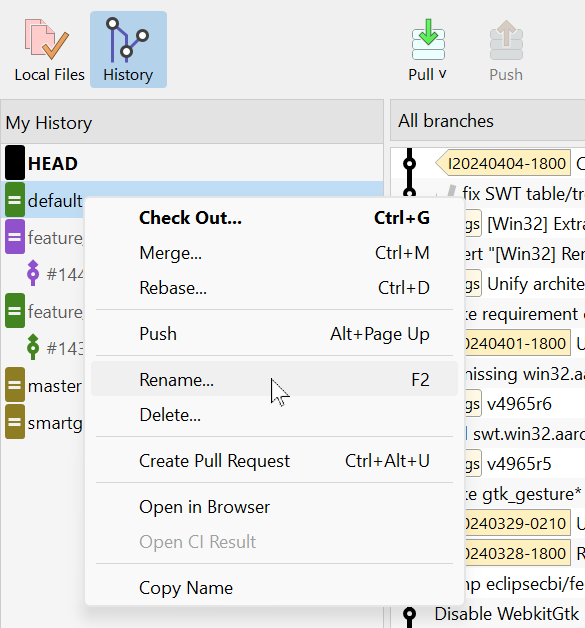
In SmartGit's Standard window, this entire process is consolidated into one single Rename command, including all safety checks.
Local-only branch: For a local (unpushed) branch, select it on the left My History view, select Rename from the context menu or press F2.
Pushed local branch: For a local branch that tracks a remote branch, we assume that all local changes are pushed.
Some branches can be found in the My History view, all branches are available in the All Branches + Tags view. Select the branch, invoke Rename from the context menu or press F2.
This will also rename the remote branch.